
Updated 29 September 2026
Sending bulk SMS online is easy. Log in, paste the mobile numbers into the Send New SMS page, type the message, and click Send. That is it. A sender ID, personalisation tags and a send time are there if you want them, delivery reports and replies come back to the same screen, and nothing is installed; a web browser is enough.
0400 333 444
0400 555 666
0400 777 888
- The free shared number (replies land in your chat)
- Your own mobile (replies go to your handset)
- A virtual number of your own
- A registered sender ID such as your business name
That is the whole job. The panel above shows the Send New SMS page inside a 160.com.au account, and the four red boxes are the only things you touch on a first campaign: paste the numbers into the To box (1), leave From on the number the account gives you or pick your own (2), type the message (3) and click Send SMS (4). One message, whether it goes to ten people or ten thousand.
The rest of this guide takes each of those steps in turn, then covers the three optional ones (a sender ID, scheduling, and delivery reports and replies) and what to check before you press send. If you would rather send from software installed on a PC, see the guide to sending bulk SMS from a computer instead.
What You Need Before You Start
Two things: an account on a web-to-SMS platform where you can send and receive SMS online, and the mobile numbers of people who have agreed to hear from you. A sender ID of your own, whether a business name or a dedicated number, is optional; every account comes with a shared number to send from, so you can send your first campaign without setting one up. If you are unsure how the messages get from the platform to the handset, the post on what an SMS gateway is explains it.
Step 1: Paste In The Mobile Numbers
Log in, open the Send New SMS page and paste the mobile numbers into the To box (box 1 in the screenshot), one per line or separated by commas. That is all most customers do; there is no need to build a contact book first. Numbers can be Australian or international and the platform formats them for you. If you send to the same people regularly, you can save them as a group or import contacts from a spreadsheet, but that is optional and can wait until your first campaign has gone out.
Step 2: Write And Personalise The Message
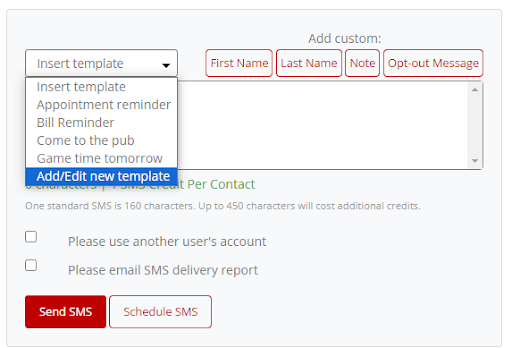
Type the text into the Message box. Keep it short: a standard text is 160 characters, and longer messages are sent as linked parts and cost more credits. Use personalisation tags to drop in each recipient’s first name or another field from your list, so one message reads as if it was written to each person. Put the important part first, say who you are, and end with the action you want (reply YES, tap the link, call the number). That is box 3 in the screenshot. Click Send SMS (box 4) and the campaign is on its way. If that is all you need, you are done; the next three steps are there for when you want more control.
Step 3 (Optional): Set Your Sender ID
The From field (box 2) decides what the recipient sees as the sender. A business name (an alphanumeric sender ID) looks professional but cannot receive replies, so it suits one-way notices. A shared mobile number, or your own dedicated virtual SMS number, can receive replies and is the right choice for reminders and anything that needs a response. From 1 July 2026 the ACMA SMS Sender ID Register applies to all alphanumeric sender IDs in Australia (ACMA, acma.gov.au/sms-sender-id-register), so register your business name before you use it.
Step 4 (Optional): Schedule The Send
The default is to send straight away. If you would rather it went out later, set a date and time so the campaign lands when it will be read: reminders the afternoon before an appointment, offers mid-morning rather than at 6am. Check the credit estimate the platform shows before you confirm, and send a test to your own phone first for anything going to a large group.
Step 5 (Optional): Track Delivery And Read Replies
Once the campaign is sent, the delivery report shows which messages were delivered, which are pending and which failed (usually a wrong or disconnected number). Replies arrive in the same web interface, can be forwarded to your email or mobile, and can be answered in a two-way chat view. Download the report for your records and drop the failed numbers before the next send.
Send
Ready to send your first campaign? Open a free 160.com.au account, get trial credits and send a test campaign to your own phone in minutes. No monthly fees, no setup fees.
Before You Hit Send
Three checks. Consent: everyone on the list has agreed to receive messages from you. Opt-out: every commercial message includes a working way to stop, such as replying STOP, and the platform removes those numbers automatically. Identification: the message makes clear who it is from. Those three cover the Spam Act 2003 requirements for commercial SMS in Australia.
Start Your Free Trial Today
The quickest way to see whether SMS fits your business is to send one campaign to a handful of your own customers and watch the replies come in. 160.com.au is a Sydney-based platform, operating since 2002, with a 100% delivery guarantee, two-way replies and free trial credits, so the test costs nothing.