
How To Use Two-Way SMS Chat On 160.com.au
This guide shows how to read replies, answer them and start new conversations in the SMS Received (2-Way Chat) screen of your 160.com.au account. It takes a couple of minutes to read and nothing needs to be set up first; every account already has the free shared 160 number, a mobile number 160.com.au shares between customers, that replies come back to. For what the feature is and who it suits, see send and receive SMS online.
Step 1: Open The Chat Screen
Log in to 160.com.au and click SMS RECEIVED (2-Way Chat) in the menu. A number badge on the menu item shows how many conversations have unread replies. The screen lists your conversations, one per mobile number, with the newest activity at the top.
Step 2: Read A Conversation
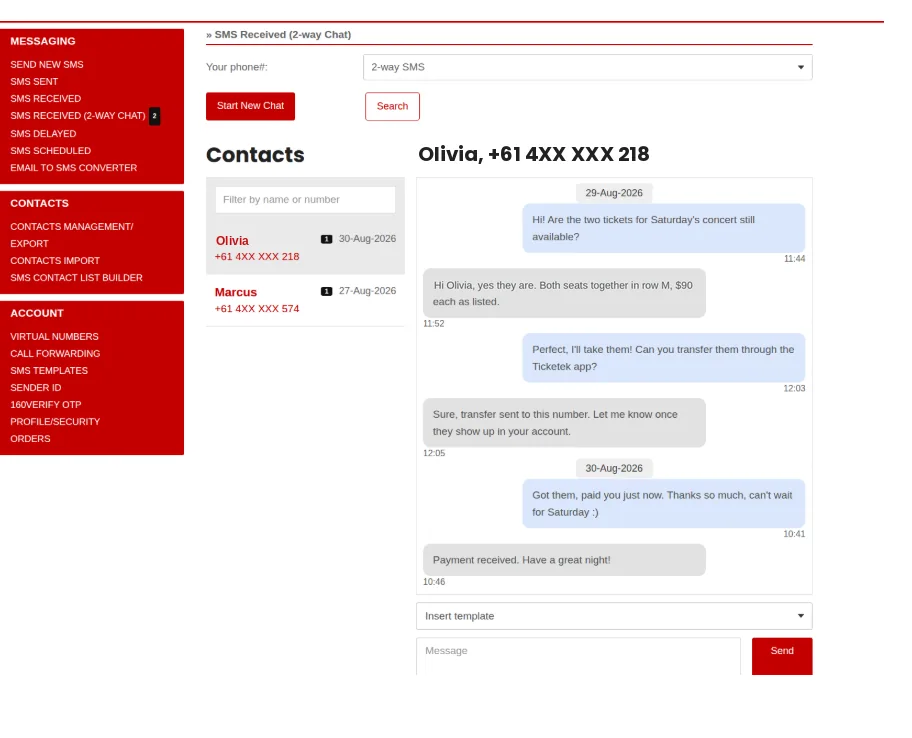
Click a conversation to open it. Messages you sent appear on one side and the customer’s replies on the other, in time order, with the date and time on each bubble. Everything ever exchanged with that number is in the one thread, so the whole history is in front of you.
Step 3: Reply
Under the open conversation there is a Message box with a Send button beside it, and an Insert template dropdown above it if you keep saved templates; both are visible at the bottom of the screenshot above. Type your answer in the box and click Send. The text goes out from the same number the customer already has, so their next answer lands back in the same thread. Each reply uses credits at your normal per-message rate.
Step 4: Start A New Conversation
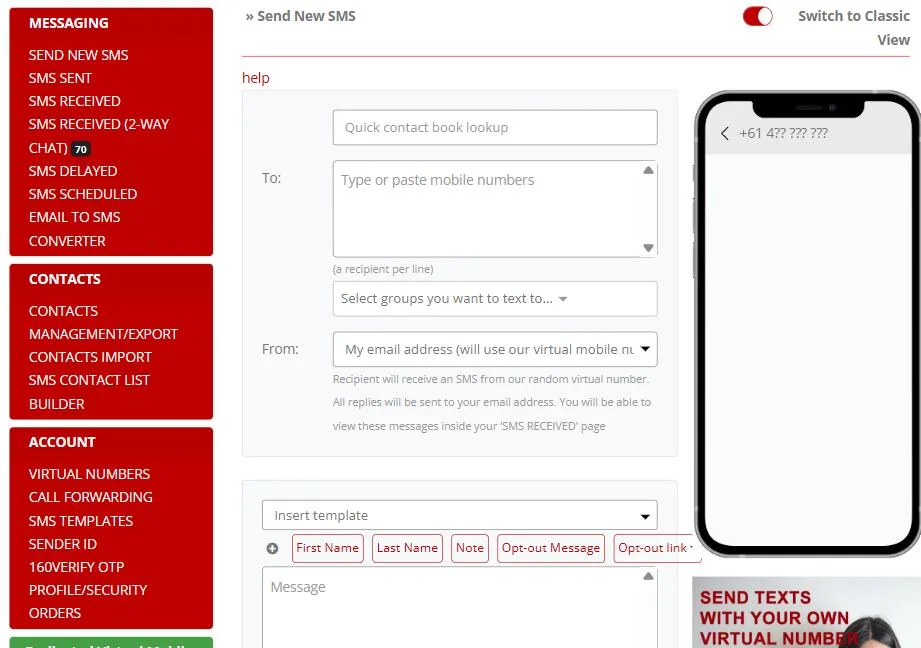
Click Start New Chat, the red button at the top left of the chat screen. This opens the Send New SMS page with your two-way number already selected as the sender, as shown below. Enter the mobile number and your message and send as usual; the conversation then appears in the chat screen ready for the reply.
Step 5: Choose Which Number Conversations Use
By default conversations use the free shared 160 number. It is a mobile number 160.com.au shares between customers: replies to messages you send from it come back to you, but nobody can text it first. In the Your phone# box at the top of the chat screen it appears as 2-way SMS. If you have added a virtual mobile number to your account, select it as the sender instead. A virtual number is the one to use when customers need to text you first, because it is yours alone and can be saved in their phone. Messages sent under an alphanumeric Sender ID cannot be replied to, so they will not start a conversation.
Step 6: Get Replies Outside The Browser
If you do not want to watch the screen, have replies sent on. Reply notifications can be emailed to you or forwarded as a text to a mobile from your account settings, and our yabb app shows the same conversations on your phone if you use a virtual mobile number. For anything more, the New Incoming SMS trigger in our Zapier integration can post each reply to Slack, a spreadsheet or your CRM.
Exporting And Searching Messages
To export messages to CSV, search them or filter by date, open SMS Received in the Messaging menu. It lists the same messages in a table with the export and search tools, while the chat view keeps them as conversations.
Managing Opt-Outs
A customer who replies STOP or UNSUBSCRIBE is opted out automatically and removed from future sends. Their reply still shows in the conversation so you can see it happened. Do not send an automatic reply to opt-out messages; if you build an auto-reply with Zapier, add a filter that ignores STOP and UNSUBSCRIBE, as described on the SMS integrations page.
Troubleshooting
A customer says they replied but nothing shows
Check which sender the original message went out from. Replies only come back for messages sent from the shared 160 number or a virtual mobile number; a message sent under a business name Sender ID has nowhere to reply to.
A reply shows on the SMS Received page but not in the chat view
Refresh the page; conversations are grouped by mobile number, so a reply from a number in a different format may appear as a separate conversation rather than under the contact name.
I want another staff member to answer conversations
Create a sub-user login under your account. Sub-users see the same conversations and credits, and each person’s replies go out from the account’s number.
160.com.au is operated by Bay Call Pty Ltd (ABN 60 104 926 678), Suite 18, 281-287 Sussex Street, Sydney NSW 2000, phone 1800 671 823, and has provided SMS services to Australian businesses since 2002.